Image to Prompt guide
How to turn an image into an AI prompt
An image-to-prompt tool gives you a draft description of a reference image. The useful part happens when you decide which details to keep, change, or omit. Here is a simple workflow you can use with photos, illustrations, and design references.
A concrete example
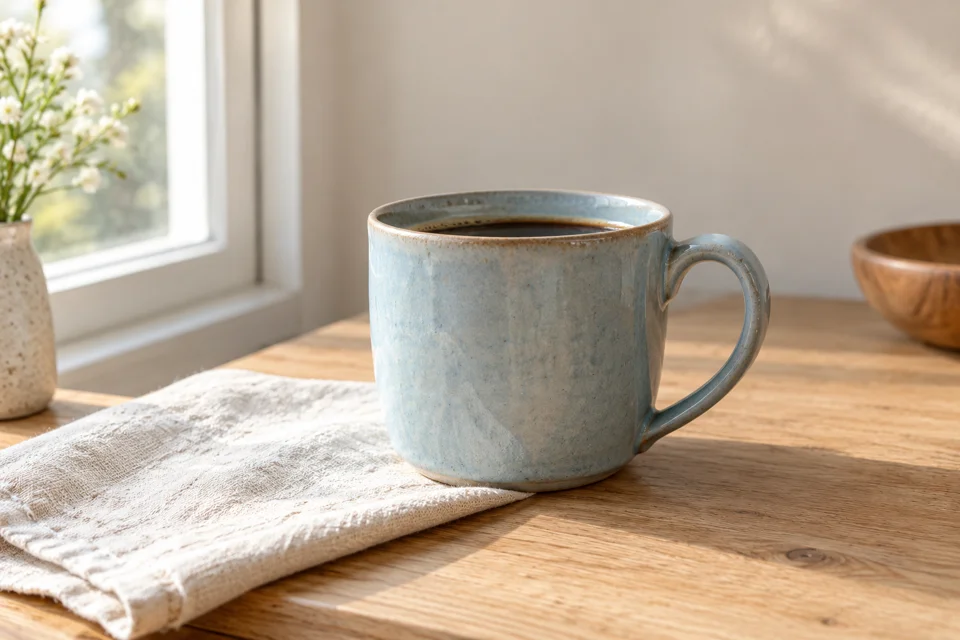
For this AI-generated reference, a manually edited prompt could read:
A pale blue ceramic mug filled with coffee on a light wooden table beside a window. A cream linen napkin lies beneath it. Soft daylight from the left, gentle shadows, close framing, a warm neutral background, and visible texture in the glaze and wood.
Check the handle, mug color, light direction, and fabric against the image. Keep those observable details. Do not invent a lens, camera brand, or the original generation prompt.
1. Start with a clear reference
Choose an image where the main subject and composition are visible. Crop away UI, watermarks, or unrelated surroundings if they are not part of the result you want. Our free image to prompt generator accepts one JPG, PNG, or WebP image up to 10 MB. The hosted demo allows 3 conversions per IP per day.
2. Generate a visual description
Upload the image and read the returned text as an observation, not a reconstruction of the original creator's prompt. The model may identify a subject, style, colors, lighting, and camera angle. It can also omit details or guess incorrectly, especially when the reference is abstract or crowded.
3. Make the prompt specific to your goal
Keep the details that drive the visual result: subject, setting, composition, medium, color, and lighting. Replace generic phrases with concrete ones. If you want a new image rather than a close imitation, change one or two elements deliberately.
For example, to develop a campaign concept from the mug reference, you might change the setting to a cafe table and add “space on the right for a headline.” That instruction is more useful than adding vague quality words.
4. Adapt it to your image model
This tool returns a general description. It does not automatically add Midjourney parameters, Stable Diffusion weights, negative prompts, or model settings. Add those in the image generator you actually use. Test a few generations and revise the prompt based on the output, since different models interpret the same text differently.
5. Respect your reference
Use images you have permission to upload. A generated description does not grant rights to a reference image, brand, or person's likeness. If the image includes private or sensitive material, use an appropriate local or self-hosted workflow instead of the public demo.
Want to run it yourself?
The project source includes a static frontend and two backend options. Read the self-hosting guide to connect your own account while keeping credentials on the server.